Ubuntu 24.04 LTS is still the safest choice if you want a stable Linux desktop for daily work, especially if you need Vietnamese input with ibus-bamboo and want to avoid the predict bar issues seen on newer GNOME releases. This guide is intentionally practical: install it once, get a usable desktop quickly, and avoid common setup mistakes.
Why choose Ubuntu 24.04 over 24.10 or 25.04?
Long-Term Support Until 2029
Ubuntu 24.04 is an LTS (Long Term Support) release, meaning Canonical commits to security patches and updates for 5 full years — until April 2029. You install it once and run it for years without being pressured into frequent major upgrades. This makes it a reliable foundation for both personal use and professional environments.
ibus-bamboo Just Works — No Annoying Predict Bar
For Vietnamese users, this is arguably the most important reason to stick with 24.04 rather than jumping to a newer release.
On Ubuntu 24.04 (GNOME 46), ibus-bamboo works cleanly — no intrusive text prediction overlay, no duplicate characters, no stuttering while typing. The experience is smooth and unobtrusive.
On newer versions like Ubuntu 24.10 and 25.04, which ship with GNOME 47+, ibus-bamboo frequently triggers a predict/suggestion bar that floats over whatever you're typing. This is a known compatibility issue between the newer GNOME input handling and ibus-bamboo, and there is no clean fix for it yet. Switching between apps, typing in browsers, or filling out forms becomes genuinely frustrating.
Ubuntu 24.04 avoids this entirely. If you type Vietnamese regularly, this alone is a compelling reason to choose this version.
Proven Stability
Ubuntu 24.04 ships with Linux kernel 6.8, which has been thoroughly tested across a wide range of hardware — from older laptops to modern AMD and Intel machines. The package versions have been vetted for compatibility with each other, and the distribution has been in production use long enough for most rough edges to be smoothed out.
System Requirements
| Component | Minimum | Recommended |
|---|---|---|
| CPU | 2 GHz dual-core | 4+ cores |
| RAM | 4 GB | 8 GB or more |
| Storage | 25 GB | 50 GB or more |
| Display | 1024 × 768 | 1920 × 1080 |
| USB drive | 4 GB | 8 GB |
Step 1: Download the ISO
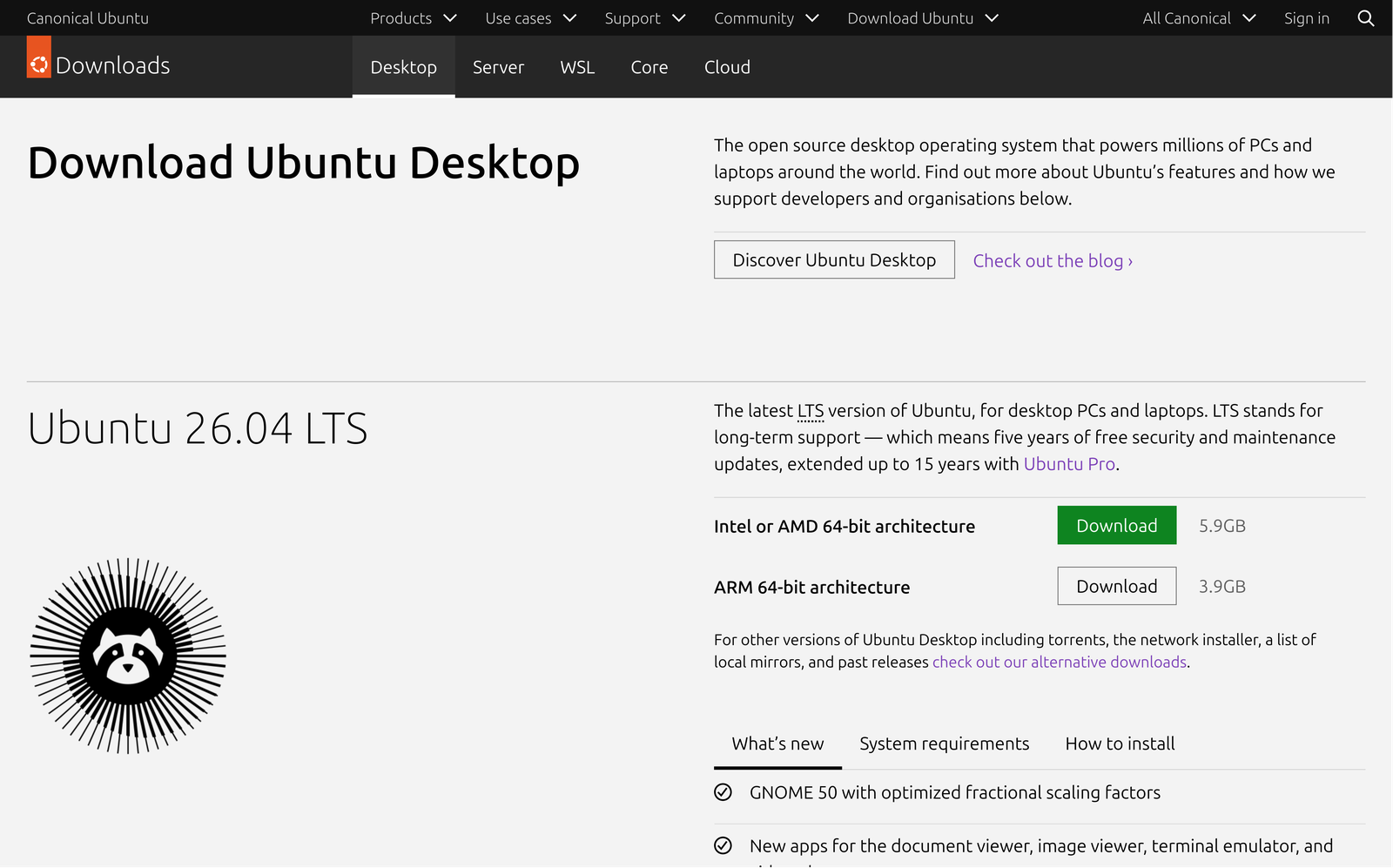
Head to the Ubuntu releases page and grab the latest Ubuntu 24.04.x LTS desktop image:
https://releases.ubuntu.com/24.04/
Download the file named: ubuntu-24.04.x-desktop-amd64.iso
The file is around 5 GB, so make sure you have a stable connection. You can also verify the download integrity using the provided SHA256 checksum on the same page.
Step 2: Create a Bootable USB Drive
You'll need a USB drive of at least 4 GB. Note that all existing data on the drive will be erased.
On Windows — Rufus
- Download Rufus from
https://rufus.ie(free, no install needed) - Plug in your USB drive
- Open Rufus and set the following:
- Device: your USB drive
- Boot selection: click SELECT and choose the ISO you downloaded
- Partition scheme: GPT for modern UEFI systems, MBR for older BIOS systems
- Click START and confirm the warning about erasing the drive
- Wait for it to finish — usually takes 3–5 minutes
On Linux or macOS — dd
Find your USB device path with lsblk (Linux) or diskutil list (macOS), then run:
sudo dd if=ubuntu-24.04.x-desktop-amd64.iso of=/dev/sdX bs=4M status=progress && sync
Replace /dev/sdX with your actual USB device (e.g. /dev/sdb). Double-check the path before running — dd will overwrite whatever device you point it at.
Step 3: Boot from the USB Drive
Shut down your computer and plug in the USB drive
Power on the machine and immediately press the key to open the boot menu:
Manufacturer Key ASUS / Gigabyte F2orDeleteDell F12HP F9orEscLenovo F12orF1MSI DeleteSelect your USB drive from the boot device list
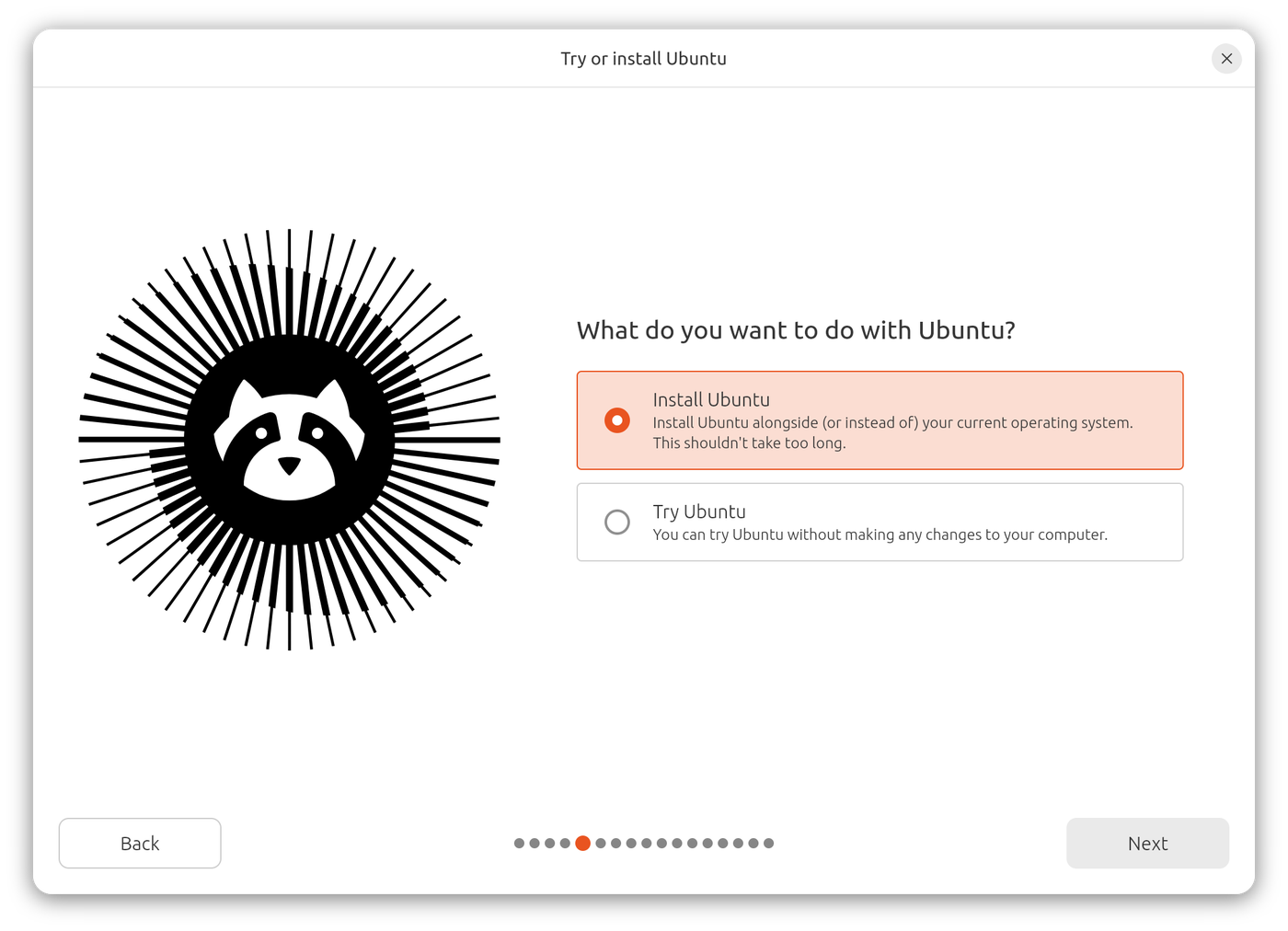
At the GRUB screen, choose Try or Install Ubuntu
The system will boot into a live environment — you can explore Ubuntu before committing to the installation.
Step 4: Run the Installer
4.1 Language Selection
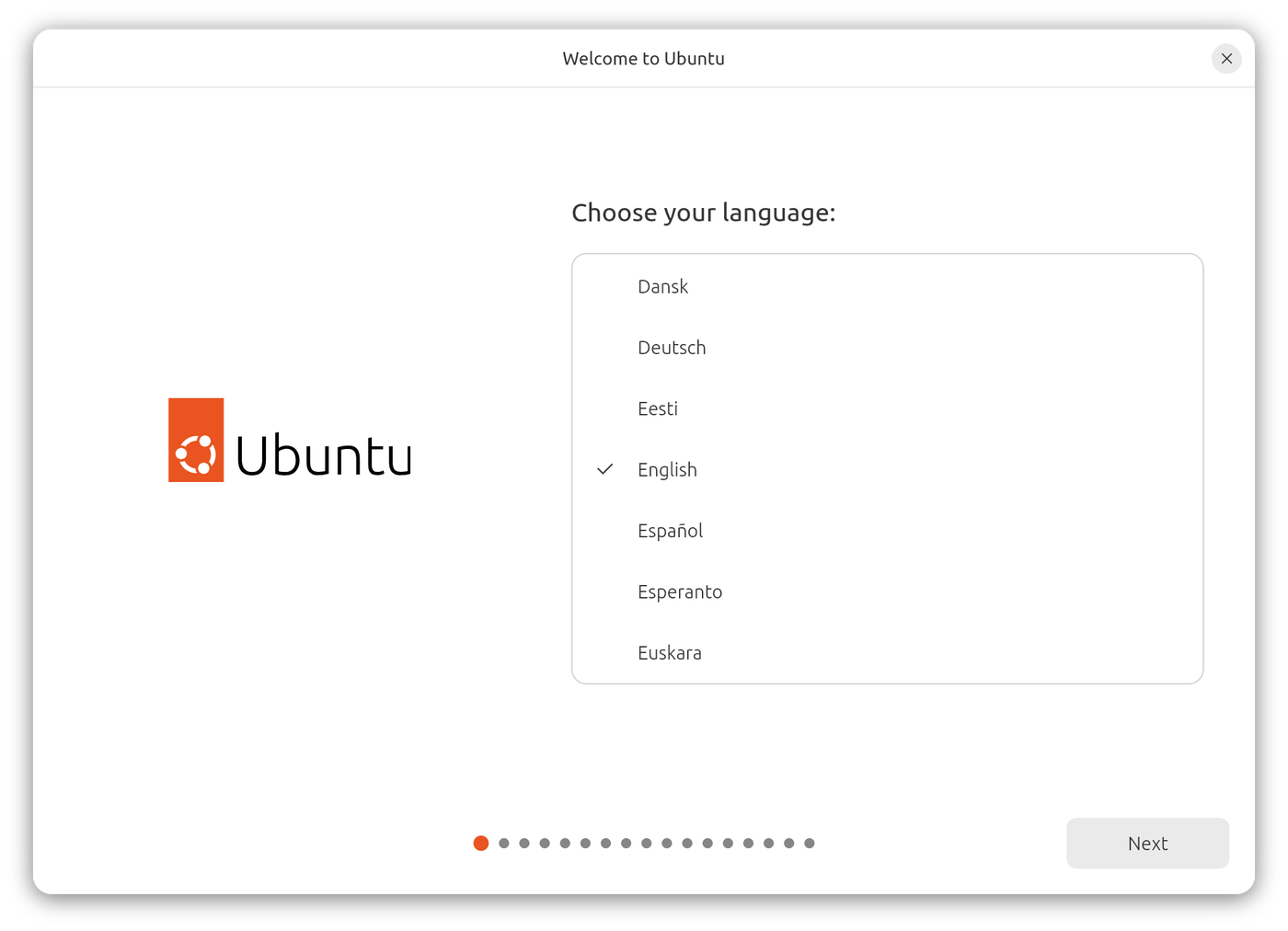
Choose your preferred language. Selecting English is generally recommended to avoid potential issues with file paths, terminal output encoding, or software that doesn't fully support localized system directories. You can still type in Vietnamese perfectly fine with ibus-bamboo regardless of the system language.
Click Install Ubuntu to proceed.
4.2 Keyboard and Network
- Keyboard layout:
English (US)works for most setups - Network: connect to Wi-Fi now for a smoother install, or skip and connect later
- Type of installation: choose Default for a full-featured install or Minimal for a leaner base
- Enable Install third-party software for graphics and Wi-Fi hardware — this automatically pulls in drivers like NVIDIA proprietary drivers and media codecs
4.3 Partitioning Your Disk
This step depends on your setup:
Option A — Dual boot with Windows: Select Install Ubuntu alongside Windows Boot Manager. Drag the divider to allocate how much space Ubuntu gets. Click Install Now.
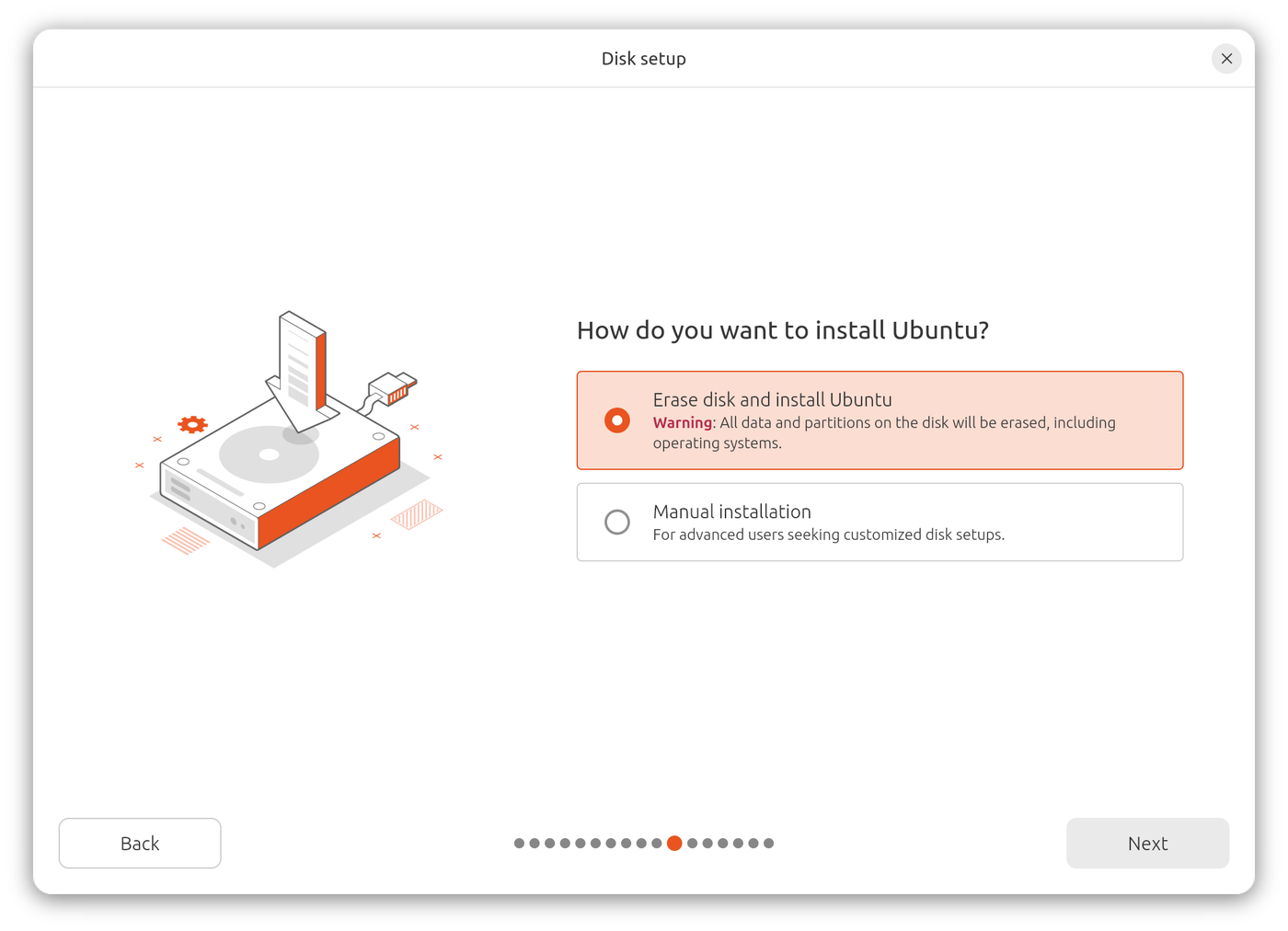
Option B — Replace everything (full disk install): Select Erase disk and install Ubuntu. This wipes the entire drive and gives Ubuntu all of it. Click Install Now → Continue.
Option C — Manual partitioning (advanced): Select Manual partitioning and create partitions yourself. A typical layout:
| Mount point | Size | Filesystem |
|---|---|---|
/boot/efi |
512 MB | FAT32 (UEFI only) |
/ (root) |
30 GB+ | ext4 |
swap |
= your RAM | swap |
/home |
remaining space | ext4 |
4.4 Timezone
Click your location on the map or search for your city. For Vietnam, select Asia/Ho_Chi_Minh.
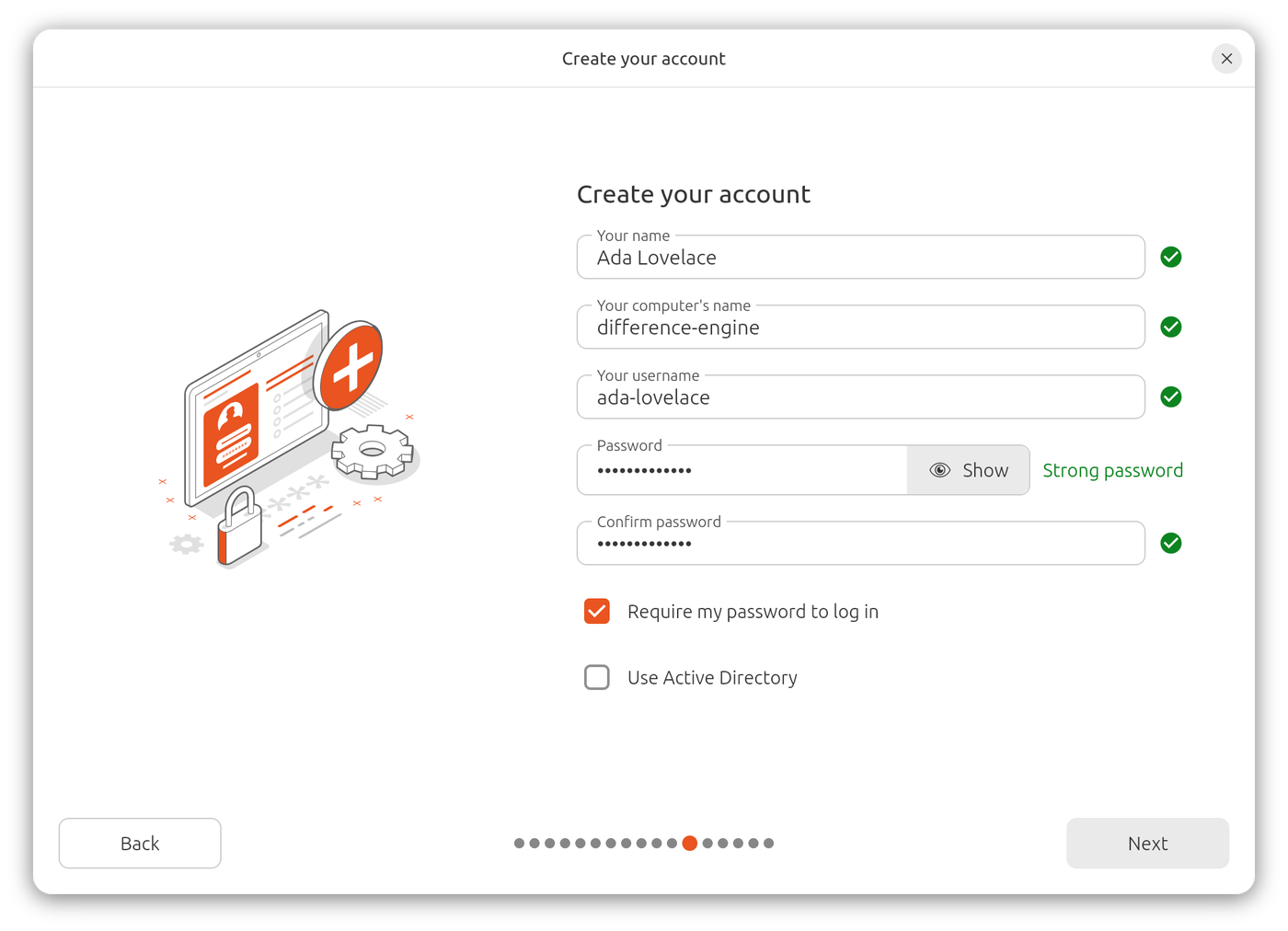
4.5 Create Your Account
Fill in your details:
- Your name: the display name shown on the login screen
- Computer's name: the hostname for your machine (no spaces or special characters)
- Username: your login username (lowercase, no spaces)
- Password: choose a strong password
- Select Require my password to log in for security
4.6 Wait for Installation
The installer copies files, configures the system, and sets up the bootloader. This typically takes 10 to 20 minutes depending on your hardware.
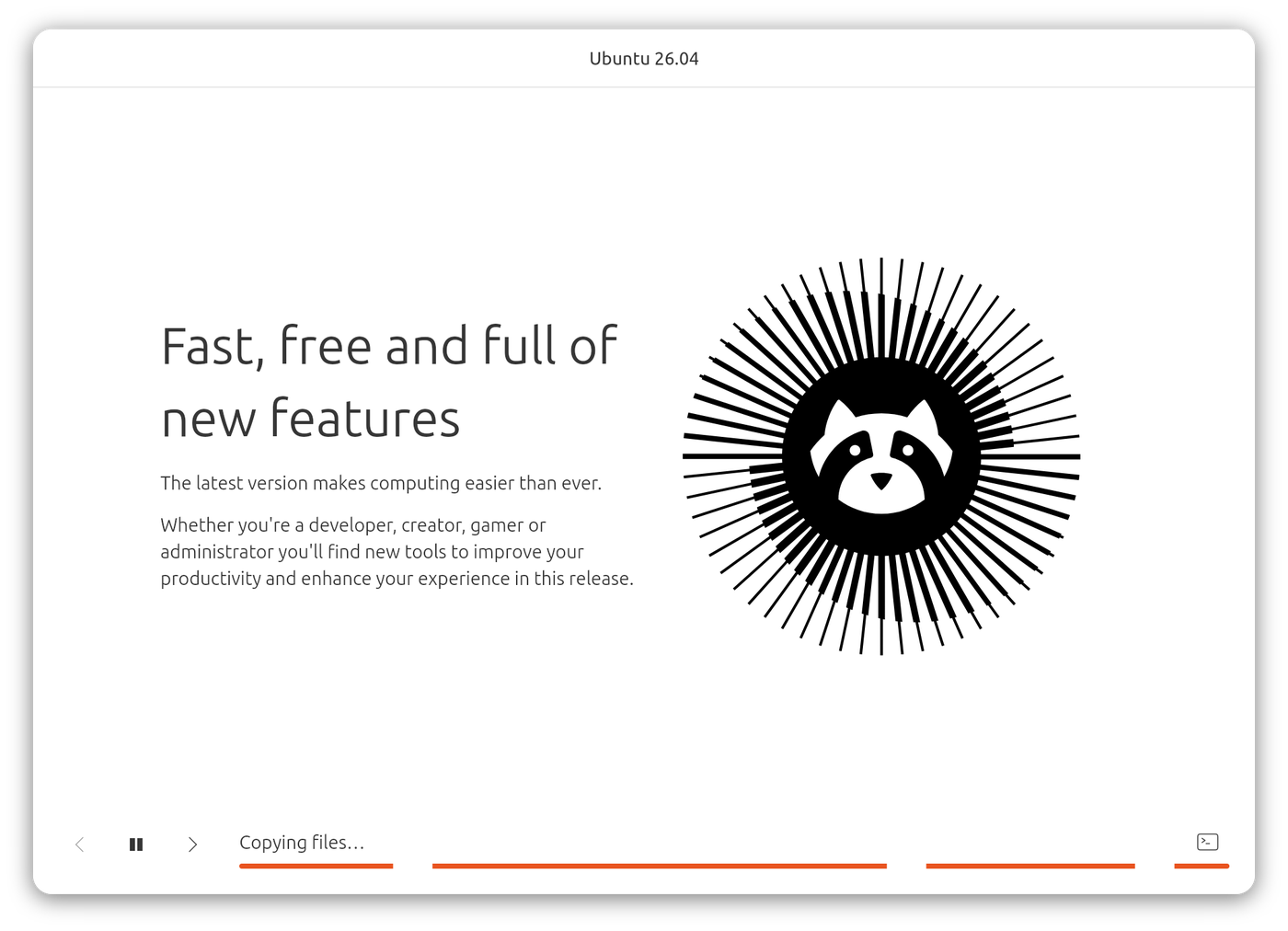
When it finishes, click Restart Now. Remove the USB drive when the screen prompts you to, then press Enter.
Step 5: First Boot Setup
After restarting, log in with the password you created. Ubuntu will walk you through a short welcome wizard — you can skip most of it or complete it as you like.
Step 6: Install ibus-bamboo for Vietnamese Input
Open a Terminal with Ctrl + Alt + T and run:
# Add the ibus-bamboo PPA repository
sudo add-apt-repository ppa:bamboo-engine/ibus-bamboo

# Refresh the package list
sudo apt update

# Install ibus-bamboo
sudo apt install ibus-bamboo -y

# Set Bamboo as the default input engine
env DCONF_PROFILE=ibus dconf write /desktop/ibus/general/preload-engines "['BambooUs', 'Bamboo']"

# Restart ibus to apply changes
ibus restart
Add Vietnamese Input in Settings
- Open Settings → Keyboard
- Under Input Sources, click the + button
- Select Other, then search for Vietnamese (Bamboo)
- Add it to your list
- Use
Super + Spaceto toggle between input sources
If a candidate/predict bar still appears, go to the ibus-bamboo preferences and disable Show candidate window or the Predict option.
Step 7: Update the System
Before doing anything else, apply all available updates:
sudo apt update && sudo apt upgrade -y
Restart your machine after the updates complete.
Useful Software to Install After Setup
# Multimedia codecs (MP3, MP4, etc.)
sudo apt install ubuntu-restricted-extras -y

# VLC media player
sudo apt install vlc -y

# Git version control
sudo apt install git -y

# curl and wget for downloading files
sudo apt install curl wget -y

# Clean up unused packages
sudo apt autoremove -y
Troubleshooting Common Issues
Ubuntu doesn't show up in the boot menu after install: Restart into your BIOS/UEFI settings and check that Secure Boot is disabled or that Ubuntu is listed as a boot option. On some machines you may need to manually add the EFI entry.
Wi-Fi not working:
Run sudo ubuntu-drivers autoinstall to let Ubuntu detect and install the appropriate driver, then reboot.
Screen resolution is wrong: Go to Settings → Displays and select the correct resolution. If your display isn't listed, you may need to install the proprietary GPU driver via Software & Updates → Additional Drivers.
ibus-bamboo not appearing after install:
Log out and log back in, or run ibus restart in the terminal. Make sure the IBus input method framework is set as active in Settings → Keyboard.
Summary
Ubuntu 24.04 LTS hits a sweet spot that newer releases haven't matched yet:
- ibus-bamboo works without the predict bar that plagues GNOME 47+ — a significant quality-of-life win for Vietnamese typists
- Supported until April 2029 with no forced major upgrades
- Linux kernel 6.8 provides solid hardware compatibility across a wide range of machines
- GNOME 46 is polished, responsive, and well-tested
- Large community means answers to almost any question are a search away
If you're setting up a Linux machine in 2024 or 2025 and you want something that works reliably out of the box — especially for Vietnamese input — Ubuntu 24.04 LTS is the version to go with.
Read next:
- Vietnamese Input on Linux: ibus-bamboo vs fcitx5-unikey — detailed comparison of both input methods and how to install fcitx5-unikey