When Synology NAS is actually worth it
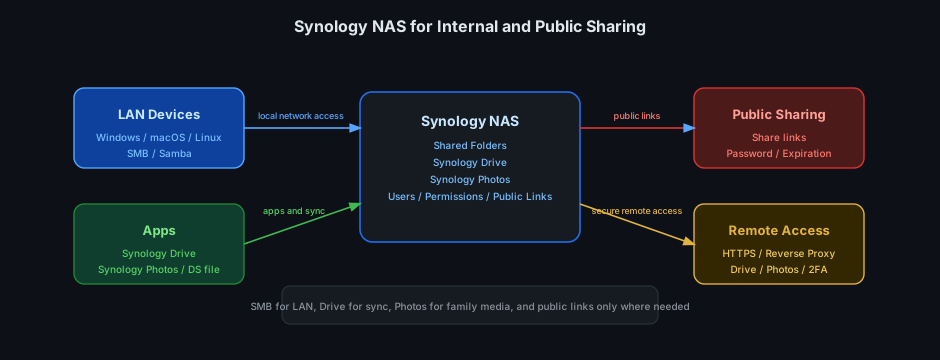
Synology is not just a box full of disks for movies or backups. Its real strength is that one NAS can play several roles at once:
- A file server over SMB/Samba for devices on your local network
- A personal cloud through Synology Drive
- A family photo library through Synology Photos
- A controlled public file-sharing point through links or reverse proxy
- An app hub for phones, tablets, and laptops
If you already run a homelab or just have many devices at home, Synology is often the simplest way to centralize files, photos, and permissions.
SMB or Samba: the easiest way to expose storage on your LAN
SMB is the closest thing to a traditional network drive. Once enabled, Windows, macOS, and Linux machines on the same network can mount NAS folders like standard shared drives.
Common practical use cases:
- A shared folder for desktops, laptops, and mini PCs in the lab
- A media folder used by Plex, Jellyfin, or editing machines
- A place for ISOs, VM images, backups, or archived projects
In DSM:
Control Panel → File Services → SMB → Enable SMB Service
Then create shared folders:
Control Panel → Shared Folder → Create
Example permission layout:
lab-share: read/write for admins and lab machinespublic-drop: only a limited set of users can uploadbackup: only backup accounts or Hyper Backup can access it
On Windows:
\\synology-nas\lab-share
On Linux:
sudo mount -t cifs //synology-nas/lab-share /mnt/lab \
  -o username=thach,uid=1000,gid=1000
SMB is powerful because it is simple, fast, and familiar. For a local network, it is almost always the first sharing layer worth enabling.
Synology Drive: a small personal cloud
If SMB is best for LAN access, Synology Drive is better when you need:
- File sync across multiple machines
- Access from outside your home
- Shareable links
- File version history
Drive does not replace SMB entirely. The practical pattern is:
- Keep active working files in
Drive - Keep large media, backups, and ISO files in SMB shared folders
To enable it:
Package Center → Synology Drive Server → Install
Then install the apps:
- Synology Drive on Windows/macOS
- DS file or Synology Drive mobile on phones
The most valuable part is selective sync and versioning. If someone overwrites a document or deletes the wrong file, Drive is much more forgiving than plain SMB.
Synology Photos: phone backup, timeline, and shared albums
Synology Photos is one of the easiest features to appreciate in a family setup.
Used properly, it gives you:
- Automatic photo upload from iPhone or Android
- Timeline, albums, people, and places for finding older photos
- Shared albums for family members without sending raw files around
- Less dependence on Google Photos or iCloud
To use it:
Package Center → Synology Photos → Install
On mobile, install the Synology Photos app and enable camera auto backup.
It helps to separate two use cases:
Personal Space: each user's private photo libraryShared Space: family or team photos
If multiple people use the NAS, separate accounts with shared albums are much cleaner and safer than one shared admin login.
Public sharing: use links or remote app access, not exposed SMB
Public access should not mean exposing SMB directly to the Internet. That is both risky and hard to manage.
In practice, think in three levels:
Level 1: LAN-only sharing
Use SMB or Drive internally, with no Internet exposure.
Good for:
- Lab files
- Backups
- Internal family data
Level 2: External sharing by time-limited links
Use Synology Drive or File Station to create share links:
Synology Drive / File Station → Share → Create public link
Prefer enabling:
- Expiration date
- Password protection
- View-only or download-only mode
This is the practical way to send large files to relatives, clients, or teammates without turning the NAS into a public network drive.
Level 3: Full remote access through a domain or reverse proxy
If you want Drive or Photos to behave like a personal cloud over the Internet, put them behind:
- HTTPS
- DSM Reverse Proxy or Nginx in front
- DDNS or your own domain
- 2FA for user accounts
For example:
drive.example.com→ Synology Drivephotos.example.com→ Synology Photos
Do not expose SMB directly to the Internet. If you need network-level remote access, use a VPN first.
Mobile apps: what makes Synology feel better than raw network storage
One underrated advantage is that Synology's apps make the NAS easier to use for non-technical people.
Commonly useful apps:
- Synology Photos: photo backup and browsing
- Synology Drive: file sync and share links
- DS file: quick file browsing like a mobile file manager
- DS finder: NAS status, restart, and resource checks
If your goal is "everyone in the house can use it without help", app quality matters almost as much as disk capacity.
A folder layout that usually works well
A simple structure that scales:
homes/username: personal data and personal app storagefamily-photos: shared Photos spacelab-share: docker compose files, ISOs, scripts, config backupsmedia: movies, music, Plex or Jellyfin librariesincoming: temporary uploads from other peoplebackup: target for PC backups or Hyper Backup
And these rules:
- Do not use the admin account day to day
- Give each user group its own shared folder
- Only use public links for folders that are meant to be shared externally
Easy mistakes to make
1. Using the admin account for everything
That is the fastest way to lose permission control. Create separate users for people, and service accounts for backup jobs or apps where needed.
2. Exposing too many ports directly
Just because the NAS has a web UI does not mean every service should be public. Fewer exposed ports is better. Prefer reverse proxy and 2FA.
3. Mixing public data with private data
Public folders should be separate from internal folders. Do not keep family photos and public share links in the same shared folder.
4. Treating Synology as the final backup
NAS is convenient, but it is not a complete backup strategy by itself. If the NAS fails, gets wiped by mistake, or gets hit by ransomware over SMB, you can still lose data. Keep another backup outside the NAS.
Conclusion
Synology is most valuable when you use it as a multi-layer data hub:
- SMB for your local network
- Drive for sync and remote access
- Photos for photo backup and albums
- Public links or reverse proxy for external sharing
If you only use Synology as a plain network disk, you are leaving most of its value unused. Enabling just SMB, Drive, and Photos already changes the experience significantly for both a home setup and a homelab.