When PM2 makes sense for NestJS
If you deploy NestJS in a simple way on a VPS or dedicated Linux server, the flow often looks like this:
- SSH into the server
- run
npm run start:prod - close the terminal and the app dies
- if the app crashes, it stays down
- after a server reboot, you start it manually again
PM2 exists to solve that exact problem. It is a process manager for Node.js that helps your NestJS app:
- run in the background
- restart automatically after crashes
- keep separate logs
- start again after a reboot
For projects that do not need Docker yet, or where you do not want to write systemd units manually, PM2 is a very practical choice.
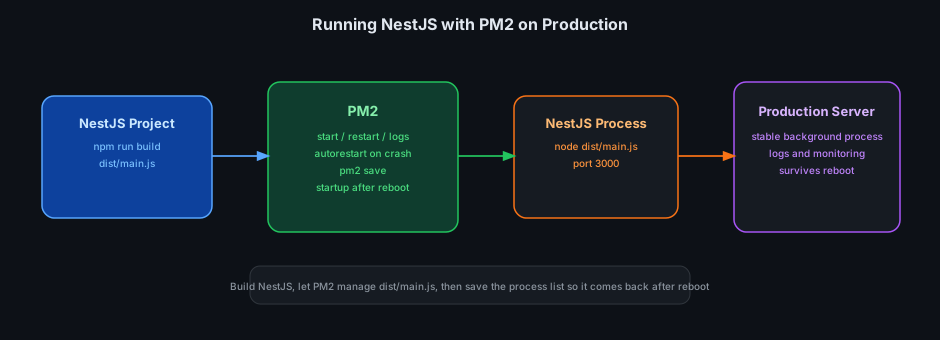
Where PM2 fits best
PM2 is a strong fit if you:
- have a small VPS
- deploy NestJS directly to Ubuntu
- want to run a few Node.js apps on the same machine
- need logs and automatic restarts without containerizing everything
If your infrastructure already lives in Docker Compose, Kubernetes, or strict systemd services, PM2 may no longer be the first choice. But for many small to medium projects, it still works very well.
Install PM2
On the server:
npm install -g pm2
Verify:
pm2 -v
Build NestJS before running it
In production, NestJS usually runs from the dist directory:
npm install
npm run build
After the build, the entrypoint is usually:
dist/main.js
Fastest way to run it with PM2
If you just want it running quickly:
pm2 start dist/main.js --name my-nest-app
That is enough to:
- create a background process
- let PM2 manage it
- restart it after crashes
List processes:
pm2 list
Use an ecosystem file for real deployments
For production, an ecosystem.config.js file is usually better than remembering long commands.
Example:
module.exports = {
  apps: [
    {
      name: "my-nest-app",
      script: "dist/main.js",
      cwd: "/var/www/my-nest-app",
      instances: 1,
      exec_mode: "fork",
      autorestart: true,
      watch: false,
      max_memory_restart: "500M",
      env: {
        NODE_ENV: "production",
        PORT: 3000,
      },
    },
  ],
};
Start it with:
pm2 start ecosystem.config.js
The advantage is that you can keep this file in the project and redeploy more consistently.
PM2 commands you will use often
pm2 list
pm2 logs my-nest-app
pm2 restart my-nest-app
pm2 stop my-nest-app
pm2 delete my-nest-app
pm2 monit
Quick meaning:
logs: view stdout and stderrrestart: restart after a deploymonit: watch CPU and memory in real time
Make it survive reboots
This is the part many people forget. Running pm2 start alone does not guarantee that the app comes back after reboot.
The correct flow is:
pm2 startup
PM2 prints another command, usually something like sudo env PATH=... pm2 startup systemd .... Copy that exact command and run it.
Then save the current process list:
pm2 save
After that, every time the server reboots, PM2 restores the process and starts the NestJS app again.
A practical deploy flow with PM2
A simple but effective flow:
git pull
npm install
npm run build
pm2 restart my-nest-app
If you use an ecosystem file:
pm2 restart ecosystem.config.js --only my-nest-app
The important part is to build first, then restart, so PM2 uses the newest dist output.
Logs and debugging when the app misbehaves
View logs in real time:
pm2 logs my-nest-app
Show process details:
pm2 show my-nest-app
show is useful because it tells you:
- the script path being executed
- restart count
- current status
- basic environment information
If the app keeps restarting, check:
- errors in
pm2 logs - whether the port is already taken
- whether the required environment variables exist
- whether
dist/main.jsis actually present
Common mistakes
1. Running npm run start:prod instead of dist/main.js
PM2 works best when you point it at the actual Node script to manage. For most NestJS apps, that is dist/main.js.
2. Forgetting pm2 save
Many people run pm2 startup but forget pm2 save, so after a reboot the process does not come back.
3. Restarting without building again
If TypeScript code changed but you did not run npm run build, PM2 restarts the old bundle.
4. Enabling watch in production
watch: true can be convenient in development, but it usually should not be enabled in production because it can trigger unnecessary restarts and waste resources.
5. No memory limit
max_memory_restart is a useful setting if the Node process may leak RAM. Once the threshold is exceeded, PM2 restarts it instead of letting the whole server suffer.
When PM2 is a better fit than Docker
PM2 is often better than Docker when:
- you only have one small NestJS app
- you want fast deployment on a VPS
- you do not want to manage images, registries, or compose files
- you just need a simple process manager for Node.js
Docker is often better when:
- the app depends on many side services
- you need environment portability
- the team already standardized deployment around containers
Conclusion
PM2 is a very practical way to run NestJS in production if you deploy directly onto Linux:
- background process management
- automatic restarts after crashes
- easy logs
- automatic startup after reboot
If you do not want to containerize everything yet but still need a stable NestJS app on a VPS, PM2 is one of the best places to start.