When local AI with Ollama makes sense
If you mainly want to:
- chat with a model on your own machine
- test prompts quickly
- summarize internal documents
- try AI without paying for an API right away
- avoid sending sensitive data to the cloud
then local AI is worth trying.
Ollama is one of the easiest ways to do that. It helps you download models, run them locally, and expose a local API that a chat UI can call.
Why Ollama is such a good starting point
Ollama removes a lot of the friction from local AI:
- download models with a simple command
- manage models more cleanly than building your own runtime
- expose a local API for other apps
- run on Linux, macOS, and Windows
In short, if your goal is “a small ChatGPT-like assistant on my own machine”, Ollama is a very practical starting point.
Is free local AI actually practical
Yes, as long as expectations are realistic.
Free local models are great for:
- internal Q&A
- code explanation
- drafting text
- summarizing documents
- basic translation
But quality and speed depend on:
- whether you use CPU or GPU
- available RAM
- how large the model is
If your machine is not very strong, start with a smaller model first. The first goal is not “the strongest model”, but “something that runs well on my hardware”.
The simplest architecture: Ollama + Chat UI
The easiest useful local AI setup is usually:
- Ollama: runs the model
- Open WebUI: gives you a browser-based chat interface
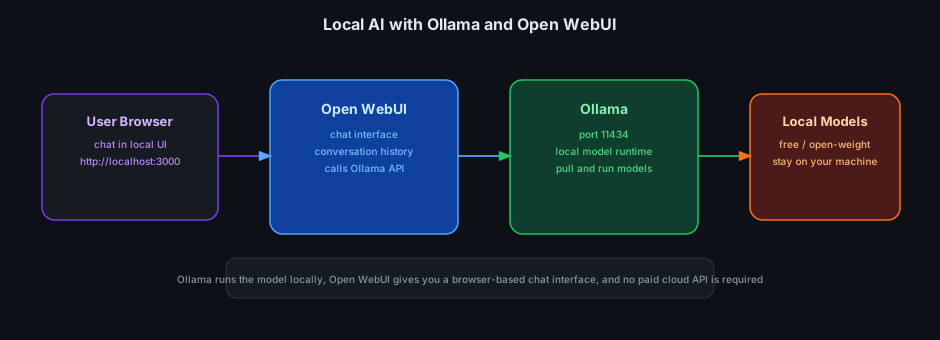
The flow looks like this:
- Ollama runs locally on port
11434 - Open WebUI runs locally on port
3000 - The browser opens the UI
- The UI talks to the Ollama API inside Docker networking
Start with Docker Compose
For a practical local AI setup, the cleanest starting point is:
- Ollama for the model runtime
- Open WebUI for the browser chat interface
- Docker Compose so both services talk to each other cleanly
A compact docker-compose.yml for local AI:
services:
  ollama:
    image: ollama/ollama
    container_name: ollama
    restart: unless-stopped
    ports:
      - "11434:11434"
    volumes:
      - ollama:/root/.ollama

  open-webui:
    image: ghcr.io/open-webui/open-webui:main
    container_name: open-webui
    restart: unless-stopped
    ports:
      - "3000:8080"
    environment:
      OLLAMA_BASE_URL: http://ollama:11434
    volumes:
      - open-webui:/app/backend/data
    depends_on:
      - ollama

volumes:
  ollama:
  open-webui:
Start it:
docker compose up -d
Now:
- Ollama is at
http://localhost:11434 - Open WebUI is at
http://localhost:3000
Open WebUI talks to Ollama through the Docker service name ollama, which is usually more stable than relying on host networking tricks.
If your machine already has Nvidia GPU support configured for Docker, you can extend this later with GPU-specific settings. For a first setup, a simple CPU-based path is usually the right place to start.
Pull your first model
After the stack is up, pull a model with:
docker exec -it ollama ollama pull llama3.2:3b
To run it directly:
docker exec -it ollama ollama run llama3.2:3b
If your machine is modest, start with a smaller model instead of pulling a large one first.
Where to browse Ollama models
Ollama has an official model library at:
https://ollama.com/library
That library helps you see:
- model names
- size tags such as
1b,3b,7b,14b - whether a model supports
vision,tools,thinking, orembedding - the pull command to use
If you are unsure what to run first, start from the library and choose a smaller model.
Ollama also gives you a free local API
One of the most useful parts of Ollama is not just the chat UI. Once it is running, it also exposes a local API at:
http://localhost:11434/api
That means you can:
- call models from internal apps
- connect a custom chatbot
- summarize documents with scripts
- build RAG or semantic search
- test AI workflows without paying per request to a cloud API
More precisely, there is no per-request API fee when you run Ollama locally because the compute happens on your own machine. The real cost is your hardware, power, and runtime.
A simple generate example:
curl http://localhost:11434/api/generate -d '{
  "model": "llama3.2:3b",
  "prompt": "Summarize this error log for me"
}'
Beyond generate, Ollama also exposes useful API endpoints such as:
POST /api/chatBetter for multi-turn chat interfaces.POST /api/embedUseful for semantic search, vector search, and RAG workflows.GET /api/tagsLets you see which models are already available locally.
So even without Open WebUI, Ollama can act as a free local AI server for your own apps.
Common Ollama models worth knowing
You do not need a huge list on day one. It is enough to understand which families fit which use cases:
llama3.2A strong starting point because it includes smaller sizes like1band3b, which are easier to run on personal machines.qwen2.5Good for general chat, multilingual work, and a wide range of model sizes.qwen2.5-coderBetter suited for code explanation, code fixes, and local developer workflows.deepseek-r1More reasoning-oriented, but many variants are noticeably heavier on modest hardware.gemma3Another useful family to try if you want alternatives beyond Llama and Qwen.nomic-embed-textNot a chat model, but an embedding model for search, RAG, and semantic retrieval.
Which model should you start with
If the goal is a practical local chat setup, a simple starting point is:
- weaker machine or limited RAM: try
llama3.2:1borllama3.2:3b - stronger general chat: try
qwen2.5:3borqwen2.5:7b - coding help: try
qwen2.5-coder:3borqwen2.5-coder:7b
The rule is simple:
- start small
- move up only if performance stays acceptable
- do not choose a hot model name if your hardware cannot handle it
What hardware can run basic models
There is no single exact answer for every machine, but for practical planning you can think in tiers:
Basic local AI starter setup
- 4 CPU cores or more
- 8 GB RAM
- no dedicated GPU required
This is suitable for trying:
llama3.2:1bqwen2.5:0.5bqwen2.5:1.5bsmollm2
You can chat and test prompts, but it will not be especially fast.
A solid personal setup
- 6 to 8 CPU cores
- 16 GB RAM
- GPU optional, but helpful
This is a better fit for:
llama3.2:3bqwen2.5:3bqwen2.5-coder:3bgemma3:1borgemma3:4b
This is a practical tier for a personal daily-use local chatbot.
A more comfortable setup for chat and code
- 8 CPU cores or more
- 32 GB RAM
- or a supported Nvidia / AMD GPU
This is more suitable for:
qwen2.5:7bqwen2.5-coder:7bmistral:7b- smaller
deepseek-r1variants
If you have a compatible GPU, the experience is usually much better than CPU-only inference.
When GPU becomes worth it
If you only want to:
- try local AI
- do light chat
- test basic prompts
then CPU is enough to get started.
But if you want:
- faster response times
- more stable use of 7B-class models
- a long-running mini AI server at home
then GPU starts to matter a lot.
According to Ollama’s official docs, it supports:
- Nvidia GPUs with compute capability
5.0+ - many AMD GPUs through ROCm
- dedicated Docker guidance for GPU setups
The practical takeaway is simple: do not wait for perfect hardware before trying local AI. Small CPU-friendly models are still the right place to start.
What real usage looks like
After opening Open WebUI, you can:
- create a local account
- select the model you already pulled
- chat in the browser
- keep conversation history on your machine
- switch models in the UI to compare them
- pull more models later and refresh the UI
If no model appears yet, pull one in Ollama first and refresh the UI.
The experience feels similar to ChatGPT, except inference happens on your own machine.
Common mistakes
1. Starting with a model that is too large
This is the most common problem. If the machine has limited RAM and you pull a heavy model first, performance can become unusably slow.
2. Forgetting to mount a volume for Ollama
Without ollama:/root/.ollama, you lose downloaded models when the container is removed.
3. Connecting Open WebUI to the wrong Ollama URL
If OLLAMA_BASE_URL is wrong, the UI opens but models do not appear or chats fail.
4. Expecting local models to behave like very large cloud models
Local AI has strong advantages in cost and privacy, but it does not always match the quality of top-end hosted models.
When local AI is most worth using
Local AI with Ollama is especially worth trying if you want to:
- learn how to run LLMs before paying for APIs
- have a free local API for your own apps
- keep a personal AI chatbot on your own machine
- experiment with prompts and local workflows
- keep private data on your own hardware
If your needs grow later, you can still keep local AI for private or lightweight tasks and only use cloud APIs when you truly need stronger models.
Conclusion
If you want the simplest path to free AI on your own machine, the combination of:
- Ollama
- Docker
- Open WebUI
is a very strong starting point.
You do not need complicated infrastructure, you do not need an API key, and you still get a real chat UI for local models. For someone starting with self-hosted AI, this setup is both understandable and genuinely useful.