When Nginx Proxy Manager makes sense
If you have several self-hosted apps at home or on a VPS, such as:
app:3000gitea:3001n8n:5678home-assistant:8123
and want to use the same IP to route multiple domains or subdomains to different apps, Nginx Proxy Manager is one of the fastest ways to build a reverse proxy without hand-writing raw Nginx config.
then sooner or later you need a reverse proxy in front to:
- point different domains or subdomains to different apps
- request SSL for each hostname
- avoid writing raw Nginx configs by hand
Nginx Proxy Manager, usually shortened to Nginx Proxy Manager (NPM), solves exactly that problem. It is a web UI on top of Nginx that lets you create proxy hosts, redirects, and SSL with a few basic forms.
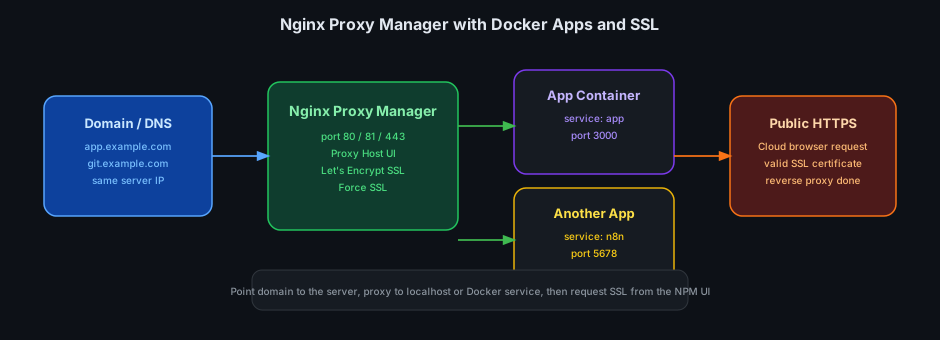
Why use Nginx Proxy Manager instead of hand-writing Nginx config
NPM is not the only option, but it is a strong fit when you want:
- fast setup
- minimal config-file editing
- a UI for many subdomains
- Let's Encrypt SSL without building your own certbot flow
If you only have one or two apps and are very comfortable with plain Nginx, hand-written config is fine. But if you want to move quickly in a homelab or small VPS setup, NPM usually saves time.
Checklist before you click Request SSL
For Nginx Proxy Manager to issue SSL for a domain, you need all three:
- The domain or subdomain already points to the server IP
- Ports
80and443can reach the machine running NPM - The target app is already running on the local network or Docker network
Example:
app.example.com-> server IPgit.example.com-> server IP
If DNS is wrong or 80/443 are not reachable, the SSL request will fail.
Running Nginx Proxy Manager with Docker Compose
A minimal file:
services:
  npm:
    image: jc21/nginx-proxy-manager:latest
    restart: unless-stopped
    ports:
      - "80:80"
      - "81:81"
      - "443:443"
    volumes:
      - ./data:/data
      - ./letsencrypt:/etc/letsencrypt
Start it:
docker compose up -d
Port meanings:
80: public HTTP for requests and ACME challenge443: public HTTPS after SSL is issued81: the NPM admin interface
Then open:
http://<server-ip>:81
The default credentials are usually:
Email:    [email protected]
Password: changeme
On first login, NPM asks you to change both.
Point the domain to the server first
If you want to publish app.example.com, create a DNS record like:
Type: A
Name: app
Value: <SERVER_PUBLIC_IP>
For multiple apps, add more hostnames:
git.example.comn8n.example.comdash.example.com
They can all point to the same IP because Nginx Proxy Manager will do the routing.
Create a Proxy Host in NPM
In the UI:
Hosts → Proxy Hosts → Add Proxy Host
Example values:
- Domain Names:
app.example.com - Scheme:
http - Forward Hostname / IP:
app - Forward Port:
3000
If the app runs in the same Docker network as NPM, use the Docker service name such as app. If the app runs outside Docker, use the internal IP such as 192.168.1.10.
You usually want:
Block Common ExploitsWebsockets Supportif the app needs websockets
Request SSL directly from the UI
After filling the proxy tab, open the SSL tab:
- choose Request a new SSL Certificate
- enable Force SSL
- enable HTTP/2 Support
- enable Agree to the Let's Encrypt Terms of Service
- enter the email for certificate notifications
Click Save.
If DNS and ports 80/443 are correct, NPM will request the certificate and enable HTTPS for that hostname.
A practical example with multiple Docker services
Suppose you have:
docker-compose.yml for the app:
services:
  app:
    image: myapp:latest
    restart: unless-stopped
    expose:
      - "3000"
docker-compose.npm.yml for Nginx Proxy Manager:
services:
  npm:
    image: jc21/nginx-proxy-manager:latest
    restart: unless-stopped
    ports:
      - "80:80"
      - "81:81"
      - "443:443"
    volumes:
      - ./data:/data
      - ./letsencrypt:/etc/letsencrypt
If you want NPM to reach the app service by Docker name, both containers need to share a network. A simple pattern:
networks:
  proxy:
    external: true
Then attach both app and npm to the same proxy network.
At that point, in NPM you can simply enter:
- Domain:
app.example.com - Forward Hostname:
app - Port:
3000
The most common mistakes
1. The domain is not pointing to the right IP
This is the most common reason SSL requests fail. Check the DNS A or CNAME record first.
2. Port 80 or 443 is already in use
If the machine already has Nginx, Apache, or another container binding 80/443, NPM may not start or the ACME challenge will fail.
Check:
ss -tulpn | grep -E ':80|:443|:81'
3. Wrong Forward Hostname
If NPM and the app run in Docker but on different networks, app will not resolve. In that case:
- either put them on the same Docker network
- or use the real internal IP of the app server
4. The app redirects HTTPS incorrectly
Some apps force HTTPS behind the proxy but do not correctly trust X-Forwarded-Proto, which creates redirect loops. If that happens, check the app's proxy-trust settings.
When NPM is not the best choice
NPM is very convenient, but not always the best option.
It is a weaker fit if:
- you want very deep custom Nginx configuration
- you prefer strict infrastructure-as-code instead of a UI
- you want dynamic reverse proxy discovery like Traefik labels
But if the goal is simply "make the app reachable with a domain and SSL", Nginx Proxy Manager remains a very practical tool.
Conclusion
Nginx Proxy Manager is a clean way to build reverse proxying for a homelab or small VPS:
- quick to run with Docker Compose
- easy to point many domains to different apps
- easy to request Let's Encrypt SSL directly from the UI
If you already have a few internal containers and do not want to hand-write Nginx configs yet, this is usually one of the best starting points.